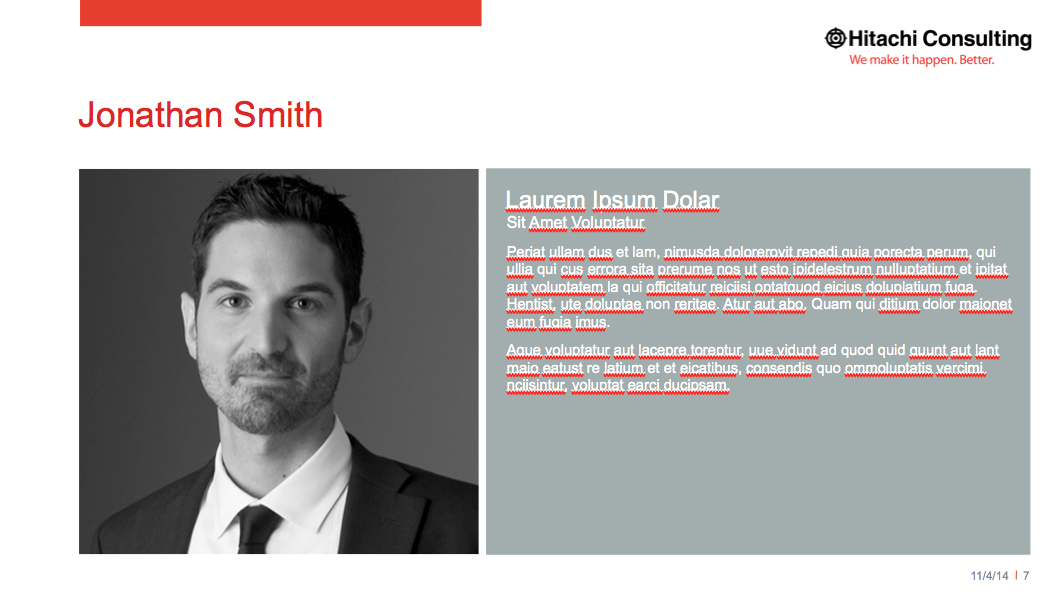
The white paragraph text is size 10, and uses normal returns.
To replace the large image:
Open up file big-headshot.psd or big-headshot.png in your image editor, and add your new image on a new layer and make sure your new image covers all of the original image you opened. Only your new image should be visible.
Create and Save an image that is exactly 588 pixels wide by 567 pixels high.
Ensure the image is black and white or greyscale.
TIP - if converting a color image to black and white, do the conversion first. Then increase the contrast by between 5-25% to make it more dramatic and fill in some of the lows.
Now you're ready to add your new image to your presentation!
Back in PowerPoint, Right-click the image in the template, and select "Change Picture..." from the menu, find the new image you just saved and click "Insert."
To be safe, after your new image is visible on your slide, right click the image again and select "Arrange" > "Send To Back" to make sure your new image isn't covering any other content!